This is an old revision of the document!
Two-Way SMS text with SMSWorks
Requirements
- An account with SMSWorks
- Incoming numbers configured at SMSWorks
- In the IQX database, the following functions and procedures are needed: IQXLocalConversation, IQXLocalConversationContactClasses, IQXLocalConversationInsert, IQXLocalConversationSendURL, OutgoingSMSCETypes, IQXLocalConversationSendURL
- In Maintenance | Database Setup | Web Pages the following items are needed: conversation.html, conversation.css, conversation.ctrl.js, paging.svc.js
- In the IQX database, the following tables SMSIncomingNumber, SMSIncomingProblem, SMSTestLog, SMSWorksConfig are needed.
- If NOT in Anywhere, an IQXHub is required, the listening port needs to be accessible from the internet (so port forwarding may be required). The hub should be authenticated, using the appropriate profile - created in Maintenance | IQXWeb Setup | Profiles as described below.
Setting Up
- Create an IQX Consultant called SMSWORKS - Create a Web Login for this Consultant - Make username = SMSWORKS and password = SMSWORKS. This will be used by SMSWorks to call a WebHook provided by IQXHub that will receive and process incoming text messages from SMSWorks.
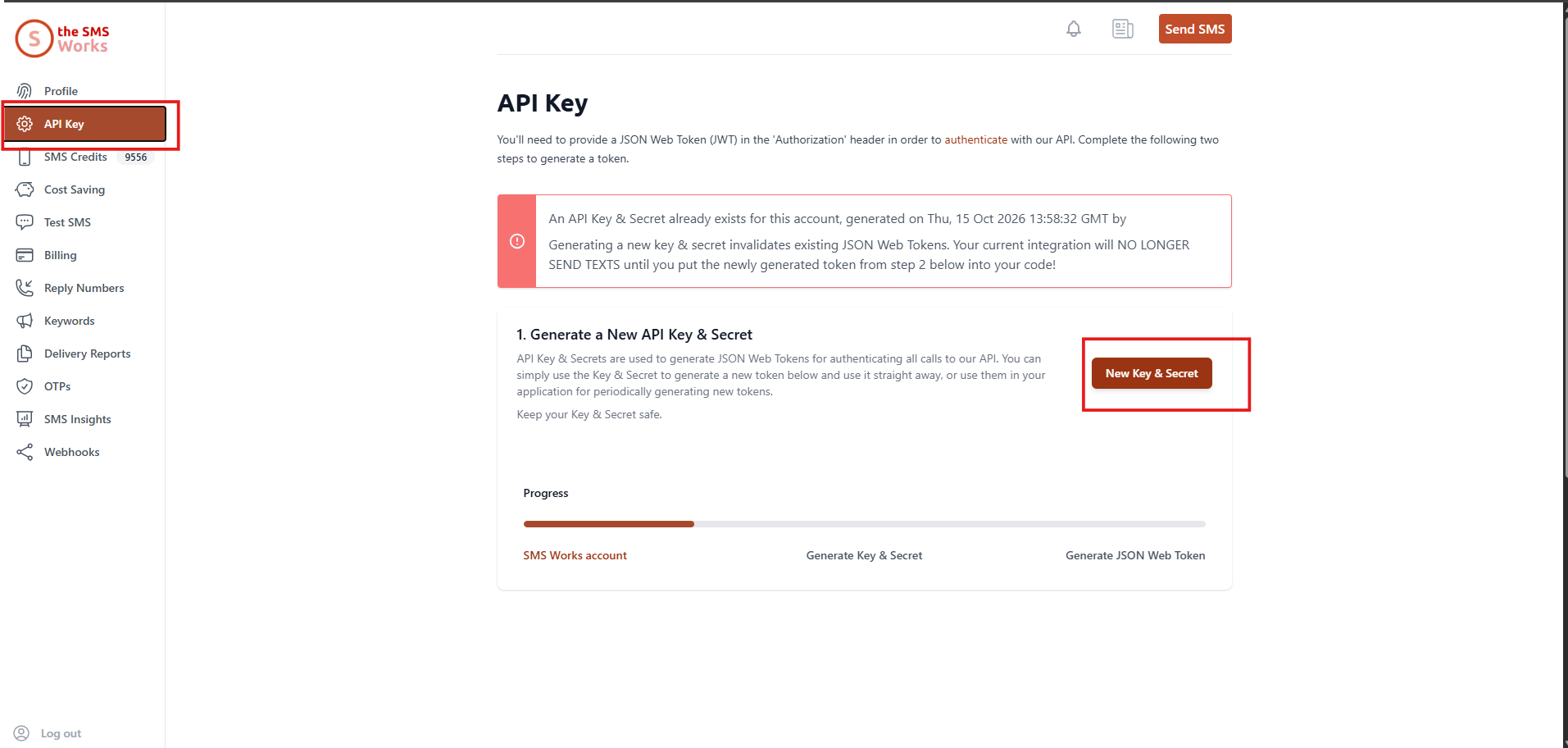
- Populate the SMSWorksConfig table with the Token (from SMSWorks) and the UserName, Password chosen above.
INSERT INTO SMSWorksConfig ( SMSWorksConfigID,Token,ResponseURL,DivisionID,UName,PWord ) VALUES ( '1', '<Token>', 'https://pizza.iqxanywhere.net/job/IncomingSMS', null , 'SMSWorks', '<password>' );
- Configure the functions OutgoingSMSCETypes & CustomSMSHTTPRequest
- Upload the IncomingSMS.xml job to the Jobs Folder
- In iqxWEB Setup use the “Create Hub for Web Services” button at the top and call it “SMSWORKS” with the password “SMSWORKS”
- In Maintenance | IQXWeb Setup | User Classes Add IncomingSMS to the permitted jobs for the SMSWORKS User Class
- In the SMSWorks Account | Reply Numbers - set the response URL eg: https://pizza.iqxanywhere.net/job/IncomingSMS, and the Username and Password as set up in IQX Web Setup for each response number (SMSWORKS for Username and Password)
- Check that the Applicant and other phone types for mobile numbers include the S Capability.
- In IQX Maintenance | General Settings set or check the following settings:
30 - Can send SMS Messages via E-Mail set to N
40 - Can send SMS Messages via HTTP set to Y
90 - The HTTP Request to use for SMS Messages should be blank as the function will be used
120 - Default Contact Event Type Code for Sending SMS set to the correct code
450 - Contact Event Class for Incoming SMS set to the contact event type for incoming SMS
- Against the IQX User record for users who are going to be using Two-Way SMS, set one of the available incoming mobile numbers on the SMS Number view.
If non-anywhere Client, a separate Hub will need to be configure to handle the incoming traffic and the URL (which is currently the pizzaURL) will look something like this
http://HUB-PUBLIC-IP:HUB-PORT/IQXjob/IncomingSMS
eg. http://195.20.254.57:54010/IQXjob/IncomingSMS
IP addresses will need whitelisted for this port to be open to, it is normally 3 ip addresses and can be obtained from SMSWorks and passed onto the Clients IT to whitelist.
http://HUB-PUBLIC-IP:HUB-PORT/IQXjob/IncomingSMS
eg. http://195.20.254.57:54010/IQXjob/IncomingSMS
IP addresses will need whitelisted for this port to be open to, it is normally 3 ip addresses and can be obtained from SMSWorks and passed onto the Clients IT to whitelist.
Using
Once the system is configured, a mobile phone style icon appears on Applicant / Candidate form next to the Make Contact Event icon. This shows the chat history between the current user and the Applicant / Candidate. All SMS texts (in both directions and from all consultants) also appear in the Contact Event view as normal.
 Catherine Riddell